

eCommerce tracking in Google Analytics provides astute insights into customer behavior, enabling a business to understand its eCommerce performance better. It enables you to analyze your visitor’s shopping behaviors, the time they spend from the start to the checkout process, the type of device used for shopping, and the transactions completed. By gaining these statistics, you can make data-driven decisions and boost your sales. Let’s learn how to set up this imperative tool!
Step 1: Get your Google Analytics Account:
In order to track your eCommerce data, start by setting up your Google Analytics account. Provide the required basic information and set up a property in your Analytics account.
login-into-google-analytics 
Step 2: Enable eCommerce for Your Website:
Next, go to the Admin section of your Google Analytics account and click “eCommerce Settings” under the View column. Flip the Enable eCommerce switch to ON. Be sure also to turn ON the Enable Enhanced Ecommerce Reporting option to gain a deeper insight into your customer’s behaviors.
enable-ecommerce-tracking-in-google-analytics 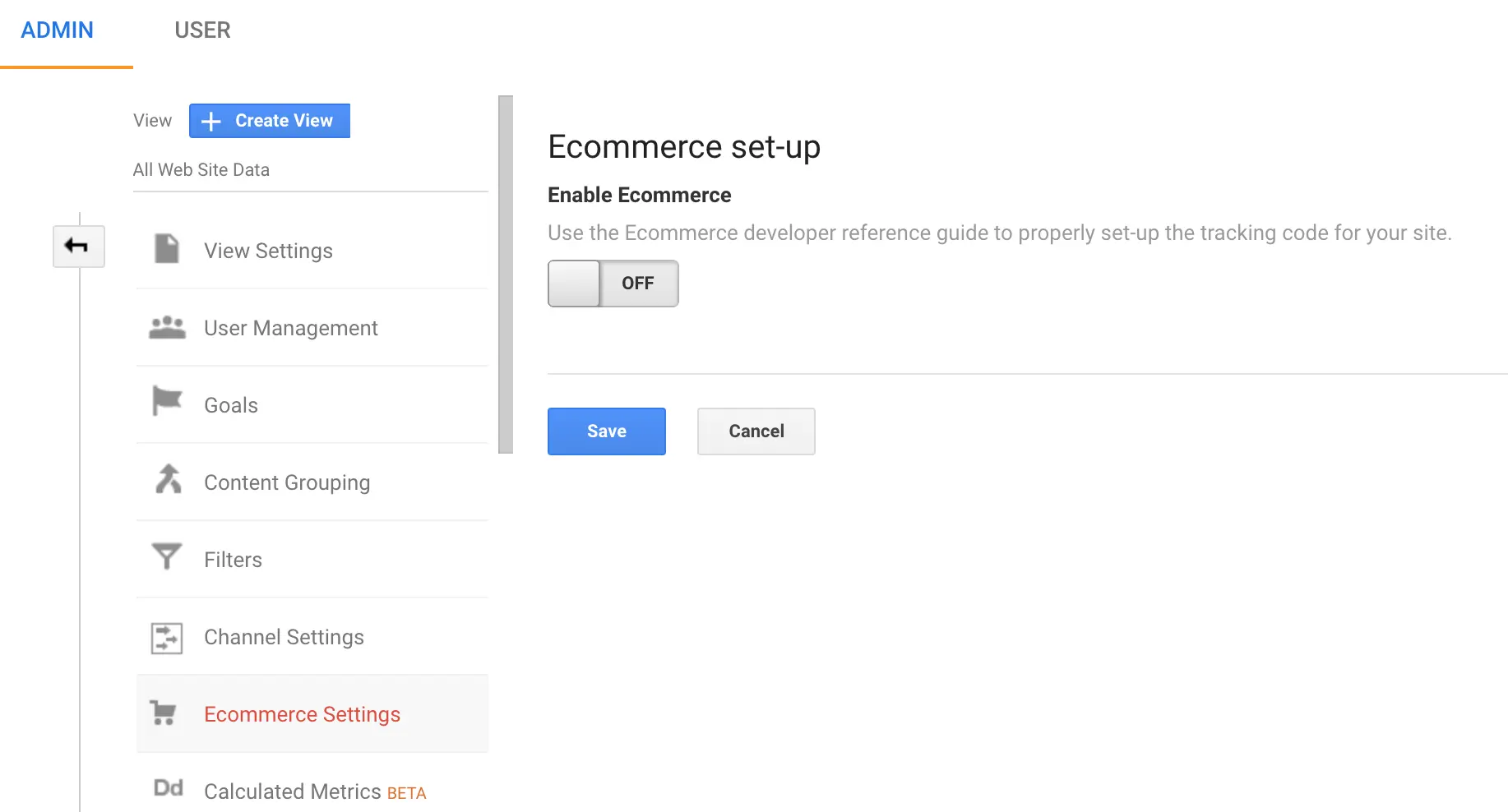
Step 3: Set up Shopping Cart Software:
Ensure your shopping cart software is set to correctly pass on eCommerce data to Google Analytics. The specifics on how to do this will vary depending on the software you use. In most eCommerce platforms like WooCommerce, Shopify, etc., there are integrations available that tie up your eCommerce data to Google Analytics.
Step 4: Adding Tracking Code to Your Website:
Add the Google Analytics eCommerce tracking code on-site to collect the necessary data. This step requires someone with coding knowledge, as it involves adding JavaScript on eCommerce pages like the “add to cart” page, or the “purchase complete” page.
add-google-analytics-tracking-code-to-website. 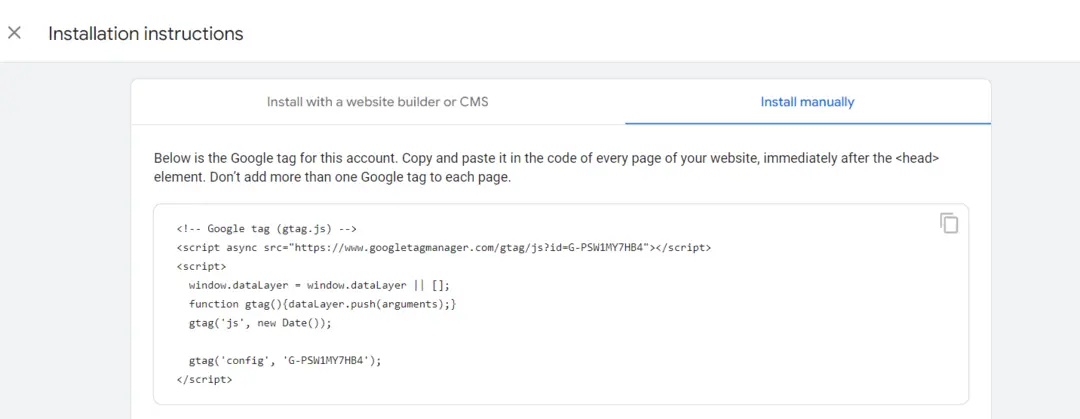
Step 5: Test Your Setup:
Once you’ve done this, use Google Tag Assistant or real-time reports in Google Analytics to help validate that everything is set up correctly. If you observe any discrepancies, refer to your eCommerce platforms’ specific Google Analytics integration guides.
test-your-setup-by-google-tag-assistant 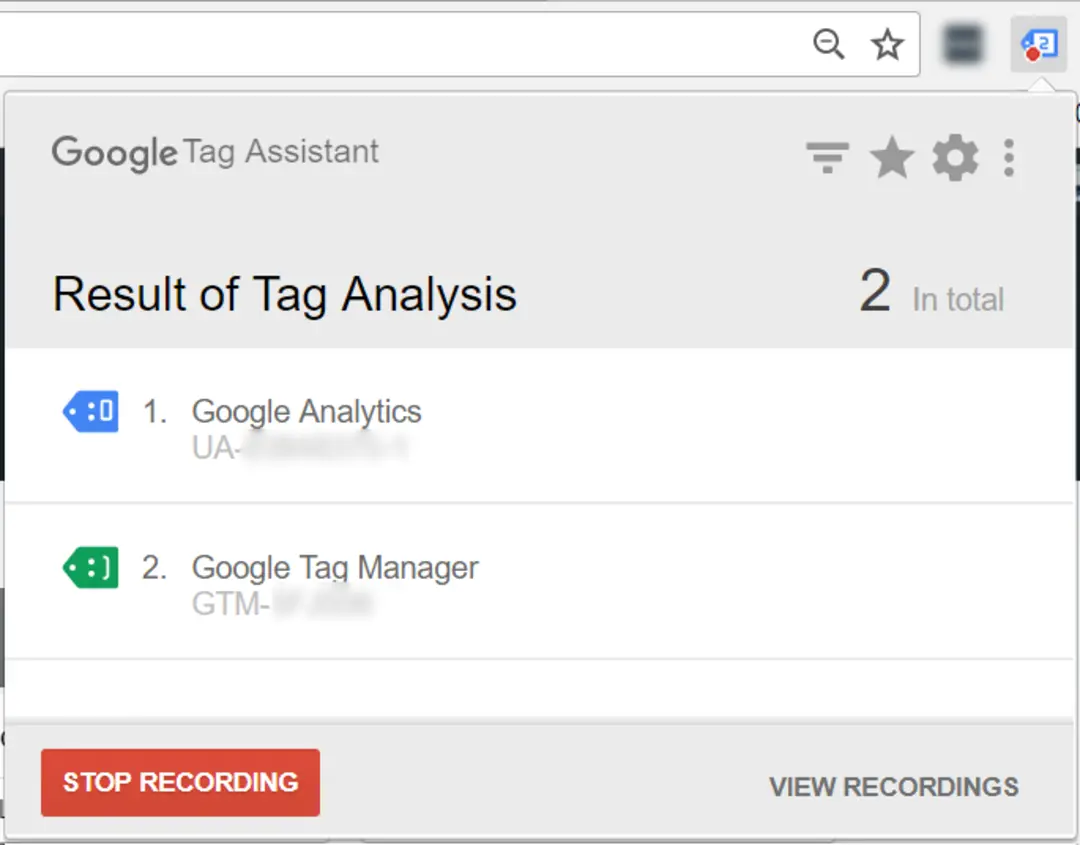
Step 6: Analyze the Data:
As Google Analytics starts receiving the data, you can check the eCommerce report for your website performance. Bear in mind that it may take up to 24 hours before you start seeing data.
Summary:
Setting up eCommerce tracking in Google Analytics is an invaluable practice for online store owners to understand their customer behavior and has a direct impact on sales conversions. It requires basic understanding about Google Analytics and some technical skills for placing tracking codes. Proper utilization of this tool has potential to bring significant improvements in your overall online eCommerce performance.
Subscribe to our newsletter